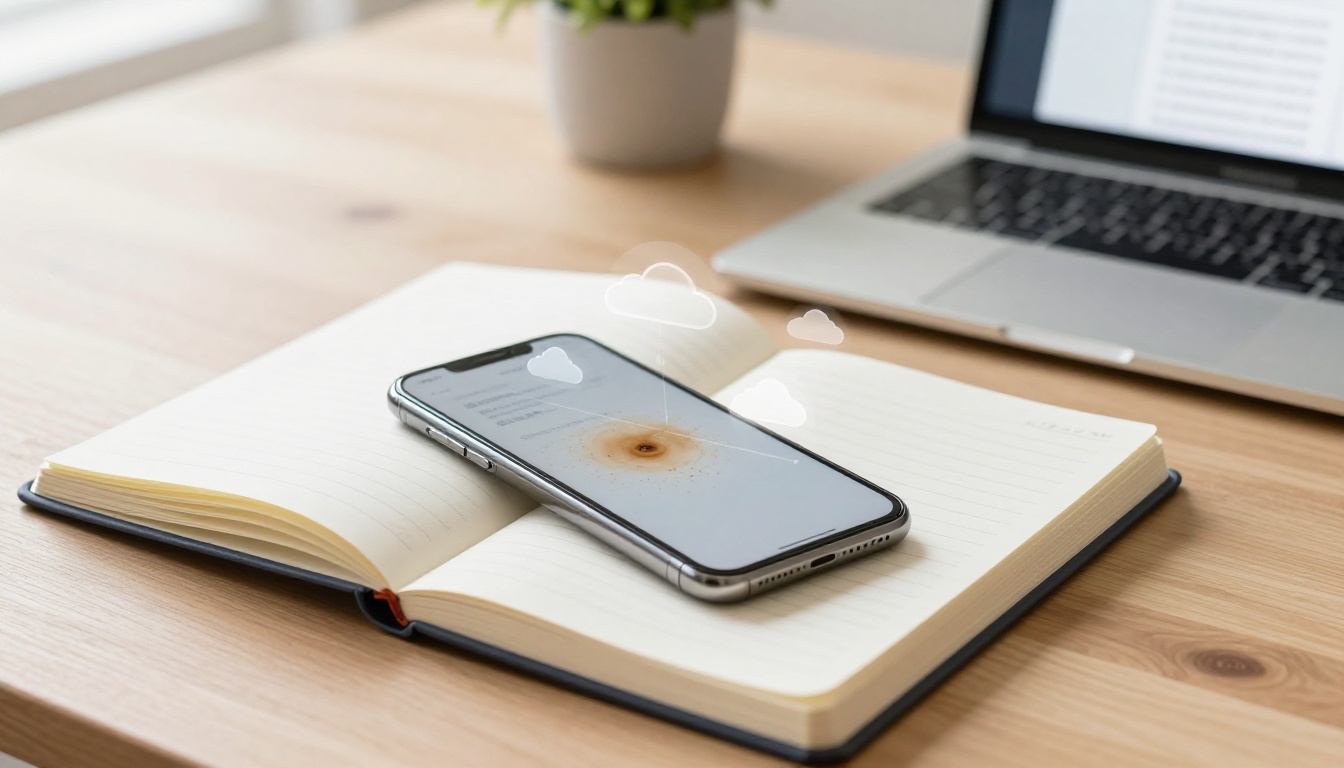
You spill coffee on your favorite notebook. Ink fades over years. Or stacks of paper bury that one crucial recipe. Physical notes vanish too easily.
Digital versions fix this. You store them safely. Search with keywords anytime. Access from any device. No more lost ideas.
The simplest fix uses free phone apps like Adobe Scan or Microsoft Lens. They scan pages fast. Add OCR to make text searchable. This post shows why it beats paper. You’ll pick apps. Follow easy steps. Set up backups. In minutes, preserve notes forever.
Why Switch Your Handwritten Notes to Digital for Keeps
Paper fails fast. Yellowing pages crumble. Water soaks through. Fire destroys whole collections. You lose hours of work. Digital files last. They copy endlessly. Backups protect everywhere.
Students cram lecture notes. Recipes fill kitchen drawers. Both clutter space. Digital shifts change that. Search “quadratic formula” instantly. Share grandma’s pie method with family. No scanning twice.
Backups add reliability. Store on clouds. Multiple copies guard against hard drive crashes. One study shows 30% of people lose data yearly without backups. Digital notes stay crisp. Paper does not.
Save Space and Stay Organized Without the Mess
Desks pile high with notebooks. Drawers overflow. You hunt for one page. Digital files need zero room. Apps sort into folders. Tag by topic.
Picture a cluttered drawer. Now imagine a phone app. Notes line up by date. Or category like “work” or “recipes.” Access pulls everything clean. No mess builds up.
Folders nest easily. “2026 Meetings” holds scans. Subfolders sort clients. Tags link across files. You find notes in seconds. Paper buries them.
Make Notes Searchable and Shareable Anytime
Handwriting blurs. Typing searches fail. OCR changes that. Apps read script. Turn images to text. Type “project deadline.” It highlights the spot.
Share hits send. Email PDFs. Drop into chats. No photo quality loss. Edit text first if needed. Recipients search too.
A student emails lecture scans. Professor reviews fast. Or you text a coworker the brainstorm page. Instant. No mail waits.
Protect Against Time, Disasters, and Forgetfulness
Ink fades after months. Pages tear in moves. Disasters wipe collections. Digital stays sharp. Pixels don’t yellow.
Backups spread risk. Phone holds one copy. Cloud adds two more. Lose the device? Notes survive. Fireproof too.
Years pass. You recall a 2010 idea. Search pulls it up. Paper might sit forgotten. Digital reminds you.
Choose the Right Free Apps and Gear for Easy Scanning
Phones beat bulky scanners for most. Cameras snap clear. Apps fix angles. Free options shine in 2026. Adobe Scan leads. Microsoft Lens follows close. Google Drive works for basics.
Test two apps. See what fits your phone. iOS or Android both support them. Skip paid scanners unless volumes hit thousands.
Apps shine with features. Auto-crop edges. Straighten skews. Boost contrast. OCR extracts text. Pick based on needs.
Adobe Scan: Best for Crisp PDFs with Smart Fixes
Adobe Scan grabs borders smart. It detects pages. Crops tight. Choose color or black-white modes. Grayscale pops faint ink.
Export as PDF. OCR makes searchable. Free version handles most. Premium adds edits. Pulls text to docs.
It fixes glare. Shadows vanish. Pages stack into books. Perfect for notebooks.
Microsoft Lens: Perfect for Quick Office-Style Captures
Lens offers modes. Document for notes. Whiteboard cleans marks. It integrates OneDrive. Saves direct.
Math mode reads equations. OCR exports to Word. Free fully. No ads nag.
Snaps fast. Multi-page batches. Office users love the flow.
Google Lens and Drive: Seamless for Android Users
Google Lens scans live. Extracts text quick. Links to Drive. Saves as PDF there.
Drive’s scanner batches pages. OCR flows to Docs. Free storage starts ample. Android feels native.
iPhone users tap in. Cross-platform works. Simple for basics.
Follow These Steps to Scan Notes Like a Pro
Prep first. Flatten pages. Clean table. Even light matters. Phone stands steady. Or hold firm.
Open app. Pick document mode. Snap pages. Review fixes. Run OCR. Export PDF. Five minutes per notebook.
Batch small stacks. Avoid fatigue. Quality holds years.
Prep Your Notes and Setup for Top-Quality Scans
Flatten curled edges. Weigh with books. Dark background contrasts white paper.
Natural window light works best. Avoid overhead glare. Phone six inches up. Tripod steadies if shaky.
Group pages. Ten max per batch. Sort order first.
Capture, Enhance, and OCR in Minutes
Launch app. Tap scan. Align frame. Auto-capture clicks. Or manual snap.
App crops. Straightens perspective. Enhance boosts clarity. Add next page.
Finish stack. Hit process. OCR runs. Seconds later, searchable PDF ready.
Quick Fixes for Common Scanning Goofs
Blur hits in dim light. Rescan with flash. Or brighter spot.
Skew from angle? Apps straighten most. Manual adjust if not.
Faint ink? Select high contrast. Black-white mode sharpens.
Set Up Storage That Keeps Your Notes Safe Forever
One copy risks all. Back up three ways. Name files clear. “2026-04-Recipes.pdf” finds easy.
Clouds sync auto. Google Drive free tier holds plenty. Dropbox seconds it.
Apps like Evernote organize further. Edit text. Link images.
Smart Naming and Folder Tricks for Instant Finds
Date first. Then topic. “2026-04_Lecture-Math.pdf.” Apps tag extra.
Folders by year. Then month. Or “Recipes/2026.” Search spans all.
Consistent names speed hunts.
Cloud Backups and Redundancy Done Right
Pick two services. Drive and iCloud cover bases. Or Dropbox pairs.
Enable two-factor auth. Auto-sync phones. Archive old stacks yearly.
Free plans suffice. Upgrade if gigabytes grow.
Turn Scans into Editable Notes for Extra Power
Export OCR text. Paste to Word. Or Notion pages.
Keep image linked. Edit words. Original stays.
Apps import PDFs. Highlight. Annotate. Power up.
Your notes now live digital. Phone apps like Adobe Scan or Microsoft Lens scan quick. OCR adds search. Smart backups seal it.
Messy handwriting? Apps forgive. They parse most scripts. Test a page.
Grab that dusty notebook. Scan today. Preserve ideas, memories. Knowledge outlasts paper.
Share your first scan in comments. What notes did you save? Subscribe for more simple tech fixes.