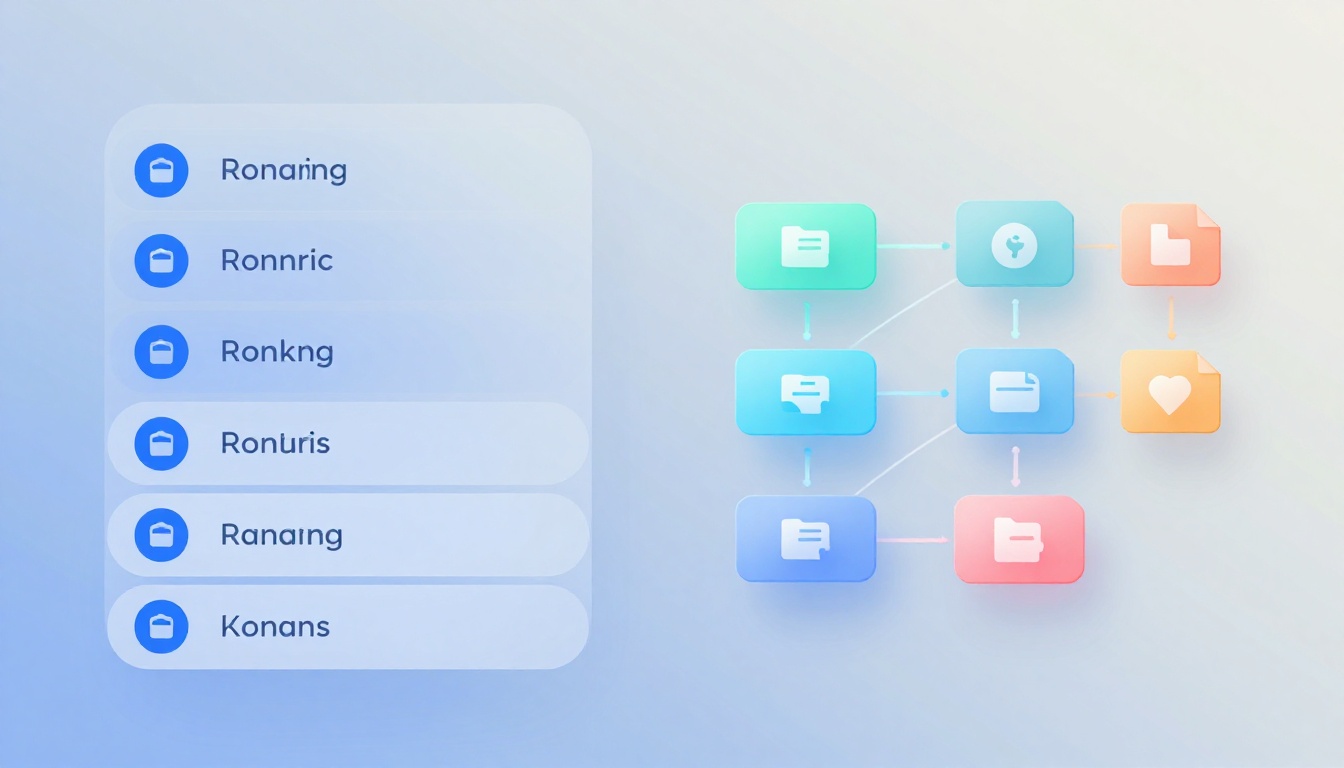
You know that sinking feeling when you hunt for a file, only to drown in a sea of misplaced documents or photos? It wastes hours and spikes your stress. Folder-based systems use nested directories, like those in your computer’s file explorer or Google Drive. Tag-based systems add flexible labels to files for easy cross-referencing without rigid folders.
Both approaches promise order, but they suit different habits. A folder-based vs tag-based digital filing system choice boils down to your workflow. Folders offer structure; tags bring freedom. This post breaks down what each provides, their strengths and weaknesses, a direct matchup, and steps to pick the right one. You’ll end up with a system that saves time and fits your life.
Grasping Folder-Based Systems: The Classic Choice
Folder-based filing organizes files into nested folders and subfolders. Think of it like a physical filing cabinet on your desktop. You create paths such as Documents > Work > 2026 Projects. This method feels natural because operating systems like Windows and Mac built it in from the start.
Most people start here. It matches how we sort real-world items, from kitchen drawers to office cabinets. Cloud services like Dropbox reinforce this setup. You drag files into place, and everything stays visible.
Advantages That Keep Folders Popular
Folders create a visual hierarchy that guides you intuitively. You see categories at a glance, so navigation stays simple. For broad groups, they shine. Sort photos by year, then event. Or group work files by client. No extra steps needed.
Devices and apps support them everywhere. You won’t learn new tricks. This saves time, especially if you think linearly. Picture sorting family photos from last summer. One folder holds them all. Or tuck business reports under Projects > Q2. Keep nests shallow, no more than three levels deep. That prevents confusion.
In short, folders prevent clutter with clear boundaries. They work well for everyday users who prefer predictability.
Pitfalls That Can Trip You Up with Folders
The rigid structure forces tough choices. Where does a file go if it fits two spots? You might duplicate it, which bloats storage. Deep nests slow you down too. Click through layers, and frustration builds.
Files with multiple angles suffer most. A vacation photo counts as family, travel, and 2026 memories. Pick one folder, and it hides from others. I once knew a friend buried in subfolders for recipes. She spent more time reorganizing than cooking.
These issues push people toward options that bend more. Folders demand upfront planning. Change your mind later, and you refactor everything.
Unlocking Tag-Based Systems: Labels Without Limits
Tag-based filing lets you slap multiple labels on files. Apps like Evernote, Notion, or advanced managers make it possible. Files live in one spot but show up in many views. Add #Vacation, #Family, and #2026 to a photo. Pull them all with one search.
This rises in popularity as tools catch up. It handles overlapping categories without force-fitting. No more “where does this belong?” stress.
Benefits That Make Tags a Game-Changer
Flexibility rules here. One file serves many roles. Search “#urgent #clientX,” and results appear fast. No duplicates required. It scales for big libraries too.
Take invoices. Tag by client, month, and status. Filter instantly for overdue ones. Creatives love this. Photographers tag shots by theme, location, and shoot date. Researchers group notes across projects.
Tags empower complex workflows. You reorganize on the fly. Add retro labels to old files. Power users gain speed over time.
Challenges of Relying on Tags Alone
You must tag upfront and stay consistent. Skip it, and chaos reigns. Over-tag, and you drown in options. Not every app supports it fully. Basic file explorers lag behind.
A newbie might face untagged piles. They search in vain. Good habits matter. Limit tags per file to five or so. Pick clear names like #ProjectAlpha, not vague ones.
Build routines, or it feels scattered. Teams need shared standards too.
Folders vs. Tags Head-to-Head: What Really Matters
Time to stack them up. Folders and tags trade strengths based on your needs. Personal use might favor one; pros lean another. Here’s a quick comparison on key factors.
| Aspect | Folder-Based | Tag-Based |
|---|---|---|
| Structure | Fixed hierarchy, easy to see | Fluid labels, multiple views |
| Best For | Simple categories, linear tasks | Overlaps, dynamic searches |
| Search Style | Browse paths | Keyword filters |
| Scalability | Good for hundreds of files | Handles thousands with ease |
| Team Sharing | Straightforward links | Needs consistent tagging |
This table shows the core trade-offs. Folders keep things tidy for basics. Tags adapt to messier realities.
Setup Speed and Everyday Handling
Folders win quick starts. Drag and drop feels instant. Daily use stays intuitive, even for beginners. Tags demand labeling first. That slows you initially.
Power users flip the script. Reorganize tags without moving files. Maintenance differs too. Folders need path tweaks; tags just edit labels. Beginners stick with folders for low effort.
Finding Files When You Need Them Fast
Browse folders if you know the path. It works for small sets. Tags crush keyword hunts. Type “#2026 #work,” done. Modern apps blend both, like Spotlight on Mac.
Scale matters. Hundreds of files? Folders suffice. Thousands? Tags prevent endless scrolling. Hybrids in tools like OneDrive boost both.
Long-Term Growth and Adaptability
Folders fit stable collections. Silos rarely change. Tags evolve with you. Add labels to old stuff anytime. Migration proves easier too. Folders carry paths; tags stay flexible.
Cloud shifts favor tags. Future apps lean searchable. Pick based on growth plans.
Your Decision Guide: Match the System to Your Life
Now make it personal. Assess your setup first. No one-size-fits-all here. Hybrids combine both in apps like OneDrive or DevonThink. Many thrive that way.
Audit Your Files and Daily Habits
Count your files. Note overlaps. Do photos fit one box or many? Track searches now. Browse folders, or type keywords? If files span categories, tags call.
Ask: How often do needs shift? Stable routines suit folders. Fluid ones need tags. This reveals your match quick.
Check Your Tools and Team Setup
Scan your apps. Finder and Dropbox excel at folders. Obsidian or Eagle handle tags best. Solo work? Either fits. Teams prefer folders for easy shares.
Test support. Some OSes tag files natively now. Pick tools that match your choice.
Experiment Smart Before You Switch
Duplicate a folder set. Tag a sample batch. Time your searches. Back up first, always. Start hybrid if unsure.
Try one week per system. Note wins and pains. Tweak as you go. Full switches wait for proof.
Folders bring simplicity for straightforward lives. Tags offer flexibility for tangled ones. Match to your workflow, and stress fades. Imagine a digital space that works for you, not against.
Test one this week. Duplicate files, tag a few, or nest deeper. See what clicks. Share your pick in the comments. Folders or tags for you? Your story helps others choose.